Every audit ends in a spreadsheet. The dashboard is where you work, but the moment someone outside the security team needs the results, whether that is an external auditor, a compliance lead, a customer or a manager who wants a column called Owner, the answer is a sheet. The Sheets surface of the ArgusSec Workspace add-on exists for that moment. Open a spreadsheet, click the ArgusSec icon, pick a scan, click Import all or Failures only, and the audit lands as one row per check. No export, no download, no upload. This post goes through what the import writes, how to run it, and the three ways we see people use the result.
What the Import Writes
The side panel shows a dropdown of your twenty most recent completed scans, labelled with the tenant name and the completion time, newest first and preselected. Below it are the two buttons. Import all writes every check that was evaluated, including the ones that passed, so the sheet is a complete picture of the control set. Failures only writes just the checks with status FAIL, which is the list you would track to closure. Either way, findings you have muted in the console are left out, so a risk you formally accepted does not reappear in front of an auditor as an open failure.
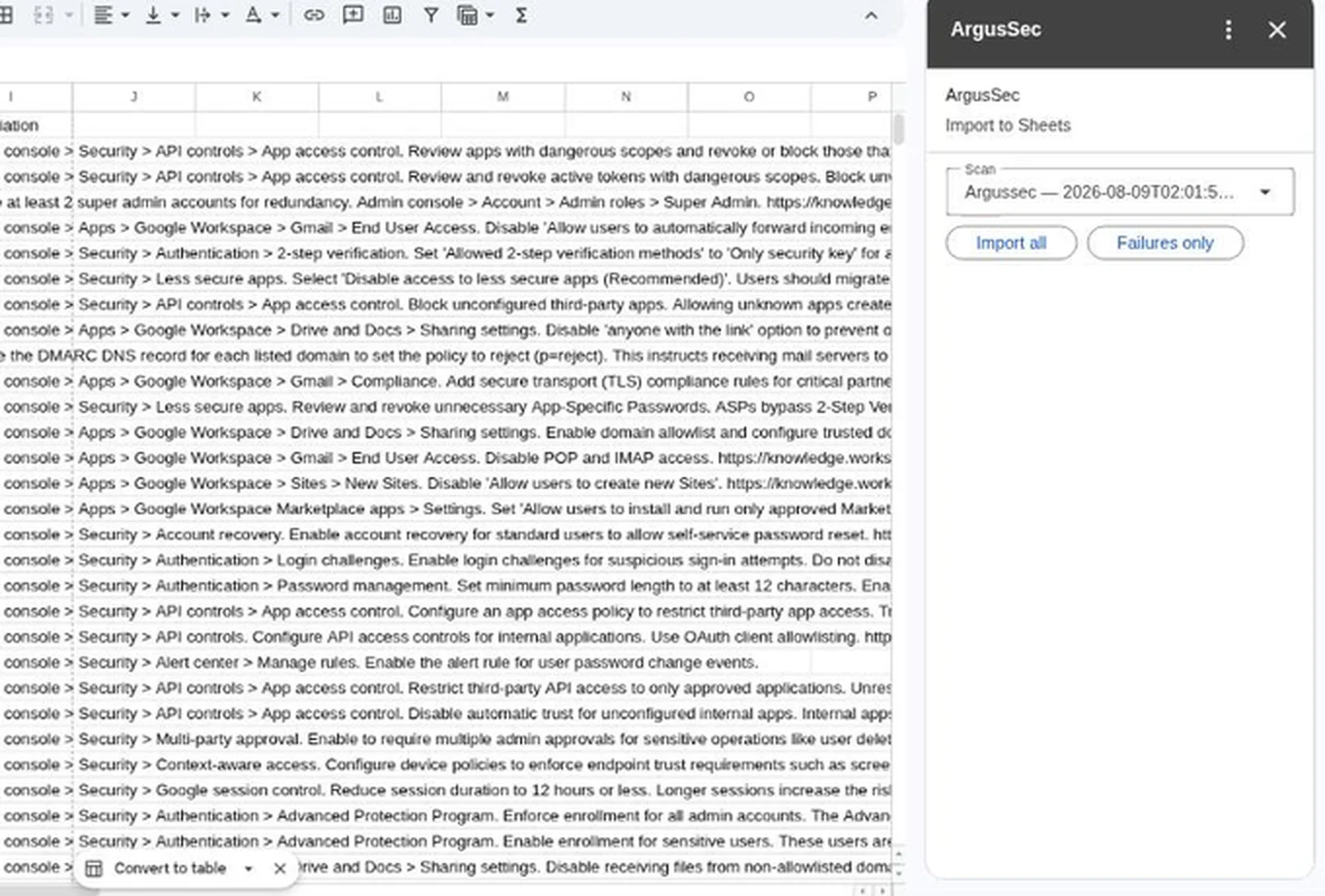
The rows are sorted by severity first, so the criticals are at the top before you touch a filter. There are nine columns, and they are always the same nine, which matters if you build anything on top of the sheet:
| Column | What it holds |
|---|---|
| check_id | The identifier you will quote everywhere else: CIS-1.1.1, GWS.GMAIL.4.3, ADD-07. It matches the dashboard, the CLI output and the check reference. |
| title | The one-line statement of the control, as in "Ensure more than one Super Admin account exists". |
| status | PASS, FAIL, WARN, ERROR, MANUAL or NOT_APPLICABLE. MANUAL means the engine could not decide from the API and a human has to look. NOT_APPLICABLE means your licence tier does not include the feature. |
| severity | critical, high, medium or low. This is the ArgusSec severity, which is what drives the posture score. |
| level | L1 or L2, the CIS profile. L1 is the baseline every tenant should meet; L2 is the hardened profile that trades some convenience for security. |
| source | The framework the check comes from: CIS, CISA for SCuBA, GOOGLE for Google's own recommendations, OTHER for the additional checks. This is the column auditors filter on first. |
| section | The product area: Gmail, Drive and Docs, Security, Directory, Groups, Google Chat and so on. Useful for handing rows to the right owner. |
| details | What the scan observed, for example "1 OU(s) do not have POP and IMAP disabled" or "Only 1 super admin found". Capped at 500 characters. |
| remediation | The fix, with the Admin console path. Also capped at 500 characters; the dashboard has the full text. |
Values are written as plain text, so nothing in a details cell is ever interpreted as a formula. A full import of a mid-sized tenant is a few hundred rows, since some checks produce one row per organizational unit. The hard limit is ten thousand rows per import, which no tenant we have seen comes close to.
Running It
-
1
Create a new, empty spreadsheet. The import appends to the first tab, so starting blank gives you the header in row 1 and the data under it. If the first tab already has content, the rows go below it, header included.
-
2
Click the ArgusSec icon in the side panel on the right. If you do not see it, the add-on is not installed for your account yet; the Marketplace listing fixes that in a minute.
-
3
Sign-in happens on its own. The panel identifies you by the Google account you are using in Sheets, and that account has to be a member of an ArgusSec organization. If it is not, you get a “Connect your account” card instead of the scan picker.
-
4
Pick the scan and click Import all or Failures only.
-
5
The first time you use the add-on in a given spreadsheet, Google asks whether ArgusSec may access this file. Allow it and the import continues. This is the per-file permission model behind the
spreadsheets.currentonlyscope, and it is why the add-on can never see a spreadsheet you did not open it in. -
6
A toast says “Imported 227 findings”, or however many rows arrived. Freeze row 1, turn on a filter, and you are done.
If a scan has nothing to import for the filter you chose, which happens when you ask for failures on a clean tenant, the panel says so and writes nothing.
Three Ways to Use the Sheet
1. The auditor evidence pack
An auditor working to a framework wants to see the control list, the status of each control, and the evidence. Import all, then filter the source column to the framework they are auditing against. A CISA SCuBA review gets the CISA rows; a CIS Benchmark review gets CIS, and the level column separates L1 from L2 so you can show which profile you claim. The details column is the evidence: it says what the scan observed, not just that something failed. Share the sheet with the auditor as a viewer. They do not need an ArgusSec account, they never touch your tenant, and the sheet is a snapshot with a date on the tab.
For the rows marked MANUAL, add a column for your own verification note. The engine marks a check MANUAL when the API does not expose the setting, so those rows are exactly where an auditor will ask "how do you know?" and a sentence from you is the answer.
2. The remediation tracker
Import failures only, then add three columns to the right: Owner, Due and Done. The section column tells you who the owner probably is, and the remediation column tells them what to do, with the Admin console path. Sort by severity, assign the criticals first, and the sheet becomes the tracker. A month later, import the newest scan into a second tab and compare: a COUNTIF across the two tabs on check_id shows what closed, what is still open, and what is new. The check IDs are stable across versions of the engine, so the comparison holds.
This is also the format that survives contact with a ticketing system. Most of them import a sheet. Few of them import a dashboard.
3. Per-customer reports for MSPs
If you manage several tenants, each one shows up as its own entries in the scan dropdown, labelled by tenant name. Make one spreadsheet per customer and import that customer's latest scan into it. The sheet does not carry a tenant column, so keep tenants in separate files rather than stacking imports in one tab; you will thank yourself later. A customer-facing copy needs almost no editing: hide level and source if they do not care about frameworks, keep severity, title, details and remediation, and you have a report they can act on. For the branded PDF version, the console's MSP plan generates one with your logo, but the sheet is the one they will actually open and sort.
What the Add-on Can and Cannot See
The Sheets panel uses two Google scopes. spreadsheets.currentonly allows writing to the spreadsheet that is open, and only after you allow it per file. drive.file is Google's mechanism for that per-file grant. There is no scope that lists your Drive, reads other spreadsheets or touches any document you did not open the panel in. The rows are written with your own delegated token, in the request you triggered, and nothing from the spreadsheet is sent back to us or stored. The audit data itself comes from the read-only service account you connected in the ArgusSec console, which is the same setup the open-source CLI uses.
Two limits are worth knowing. The import is a snapshot: the sheet does not refresh when the next scan runs, and that is deliberate, because an evidence pack should not change under an auditor. And the details and remediation cells are cut at 500 characters. For the handful of checks with longer remediation text, the Open in dashboard link on the finding has the full version.
The Workspace Add-on wiki page has the column list, the scopes and a troubleshooting section, and the earlier post on running the audit from Google Chat covers the other surface most people pair this with. If the import saves you an export-and-upload round trip this quarter, a review on the Marketplace listing helps the next compliance lead find it.