Most Workspace admins do not open a security dashboard every morning. They open Chat, because that is where the tickets, the escalations and the "can you check this quickly?" messages arrive. The ArgusSec app for Google Chat, part of our Marketplace add-on, is built for that habit. It answers four slash commands and any free-text question from the results of your most recent audit, and it hands you a dashboard link only when you want one. This post walks through every command, what each card contains, and how we use them in a morning routine.
Before You Start
The Chat app needs three things in place. First, the add-on installed from the Marketplace listing, either by you for your own account or by a Workspace admin for the domain. Second, an ArgusSec Cloud account at app.argussec.io that uses the same Google address you use in Chat. The app identifies you by that email and looks up your organization, nothing more. If the addresses do not match, every command returns a "Connect your account" card with an Open ArgusSec button, and nothing else happens. Third, at least one completed scan. The first audit is free and needs no card.
To add the app, open Chat, choose New chat, search for ArgusSec under Apps and start a direct message. You can also add it to a space your team shares. On arrival it posts a short welcome card with the three commands most people try first. Typing /gws-help at any point brings back the full list.
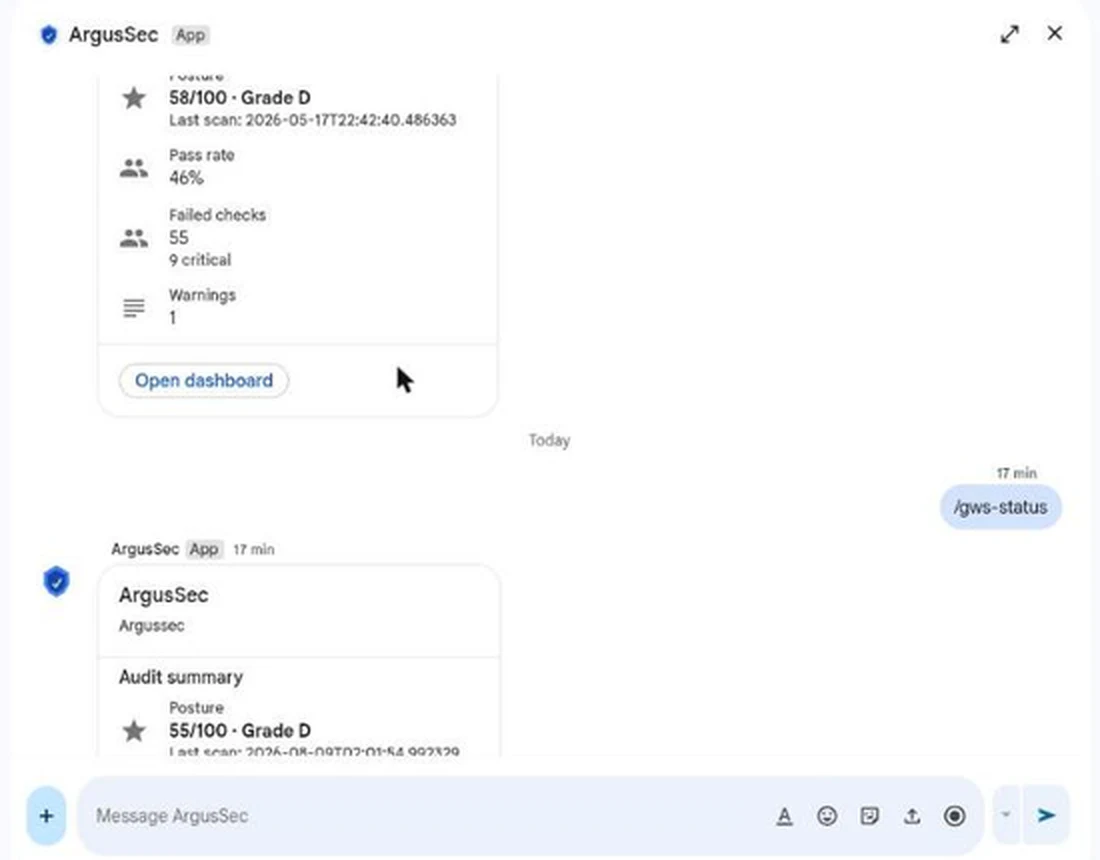
/gws-status is a card, not a wall of text./gws-status: Where Do We Stand?
The status card is the one you will send most. It reads your organization's latest completed scan, whichever tenant it ran against, and shows four rows: posture score and grade with the scan time, pass rate, failed checks with the number that are critical, and warnings. The card title carries the tenant name, so an MSP with several customers connected can tell at a glance whose numbers these are. An Open dashboard button at the bottom deep-links to the findings page.
The counts leave out anything you have muted in the console. If you accepted the risk on a check last month, it will not inflate the failed count in Chat this morning.
/gws-audit: Kick Off a Scan Without Logging In
This queues a new audit of your first connected tenant and replies with "Started a scan on tenant. Check /gws-status in a few minutes for results." A full run of the 227 checks takes a few minutes depending on the size of the directory and how many logs there are to pull, so the sensible pattern is to fire it off, go back to whatever you were doing, and send /gws-status when you are ready.
Two guard rails apply. If your organization has used its free scan and has no subscription, the app says so and points you to the dashboard instead of silently doing nothing. And if no tenant is connected yet, it tells you to add one in the console first, since the service-account setup is not something a chat bot should walk you through.
/gws-findings: What Is Actually Broken?
Sent on its own, the command returns the failures that matter most: only checks with status FAIL and severity critical or high, ordered worst first, up to ten on the card. Each row shows the check ID, the title, the section it belongs to and the severity. This is the list you would triage from.
Add a section name and the filter changes. Now you get every failure in that section regardless of severity, so mediums and lows show up too. The match is case-insensitive and partial, which means drive finds "Drive and Docs", chat finds "Google Chat", and access finds "Access Control". The sections in the current engine are Gmail, Security, Drive and Docs, Google Chat, Groups, Google Meet, Access Control, Directory, Gemini, Classroom, Calendar, Assured Controls, Reporting, Alert Rules, Sites, Devices and Marketplace. If the section is clean the card says "No matching failures — looking good", which is a pleasant thing to be able to paste into a thread.
As with the status card, muted findings never appear, and there is an Open in dashboard button when the ten rows are not enough.
/gws-remediate: How Do I Fix This One?
Give it a check ID from the findings card and it returns the detail card for that check as it stood in the latest scan: the title, status and severity, the Details line that explains what the scan observed, and the Remediation text with the Admin console path. Two buttons follow. Open in dashboard jumps straight to that check in the console, and for checks whose setting lives at a known Admin console URL there is an Admin Console button that opens the page where you change it.
ArgusSec
CIS-1.1.1
CIS-1.1.1
Check
Ensure more than one Super Admin account exists
FAIL · CRITICAL
Details
Found 1 super admin account. A single admin is a single point of failure for account recovery.
Remediation
Create at least 2 super admin accounts. Admin console → Directory → Users → select user → Admin roles and privileges.
The shape of a remediation card. Details text varies with what the scan found.
The check has to exist in the latest scan. Ask about an ID that was not evaluated, or mistype one, and you get "Check CIS-9.9.9 not found in latest scan" rather than a guess.
Everything Else Goes to the AI Analyst
Any message that is not a command is passed to the AI Analyst, the same one that lives in the ArgusSec dashboard, together with the full results of your latest scan: every check, its status, what was observed, what was expected and the organizational unit it applies to. Organizations with Risk Reports enabled also get their open exposure items in the context, so you can ask about externally shared files or third-party apps and the answer comes from your data. It is hosted in the EU and there is no API key to configure.
Questions that work well are the ones you would ask a colleague who had just read the report:
- "What are my three worst Gmail issues?"
- "Which failures would an auditor flag first under CISA SCuBA?"
- "Explain CIS-3.1.3.5.2 like I am new to Workspace admin."
- "Give me a GAM command to fix the auto-forwarding finding."
- "Which critical failures apply to the Sales org unit?"
Two things to know. Each message is answered on its own. The app does not carry the conversation forward between messages, so a follow-up like "and the second one?" will not land. Put what you need in the question. And replies are trimmed to about 4,000 characters to fit Chat, so "keep it short" is a useful suffix for anything open-ended. If an org admin has switched the analyst off under Settings → AI Analyst, the app says so instead of answering.
Plain Words Work Too
Slash commands are the documented way in, but the app also understands the bare words: status, audit, findings gmail, remediate CIS-1.1.1 and help. That matters on mobile, where Chat's slash-command picker is fiddly, and in spaces where the app is mentioned rather than messaged directly.
A Morning Routine
Here is how we use it, and it takes under five minutes.
-
1
Send
/gws-status. If the score matches yesterday, you are done. If it dropped, something changed in the tenant overnight. -
2
Send
/gws-findingsto see the critical and high failures. New IDs you do not recognise are the ones to look at. -
3
Send
/gws-remediatewith the ID. Read the remediation, click Admin Console, make the change. -
4
Ask the analyst: “Which three findings should I fix first to improve my score the most?” It is a good tie-breaker when there are more failures than time.
-
5
Send
/gws-auditafter you have changed something, and check the status card again in a few minutes to confirm it moved.
What the Chat App Does Not Do
It is deliberately narrow. It reads only the messages you send to it, not the rest of a space. It never touches mail or Drive content; the audit data comes from the read-only service account you connected in the console. It scans the first tenant you connected, so organizations with several tenants should start additional scans from the dashboard for now. And it cannot mute a finding or accept a risk from Chat yet. That is the next thing on the list, together with a scheduled posture message for spaces, so a team can get the status card every Monday without anyone typing a command.
If you want the commands documented in one place, the Workspace Add-on wiki page has the table, the scope list and a short troubleshooting section. And if the Chat app saves you a dashboard login or two, a review on the Marketplace listing helps the next admin find it.